Agent identity
The two ways an agent gets a token. The agent key for the headless mode, and the Harness login card for coding harnesses.
An agent gets a Xokepoint token in one of two modes, and it can use both (Agents):
- Headless: the agent runs as a service, proves who it is with its own key and exchanges the person's token for a Xokepoint token. The Key card handles this.
- Interactive: a person signs in from a coding harness, such as Claude Code, and consents. The agent needs no key for this mode. The Harness login card handles this.
Both cards are in the Identity tab of the agent.
Harness login
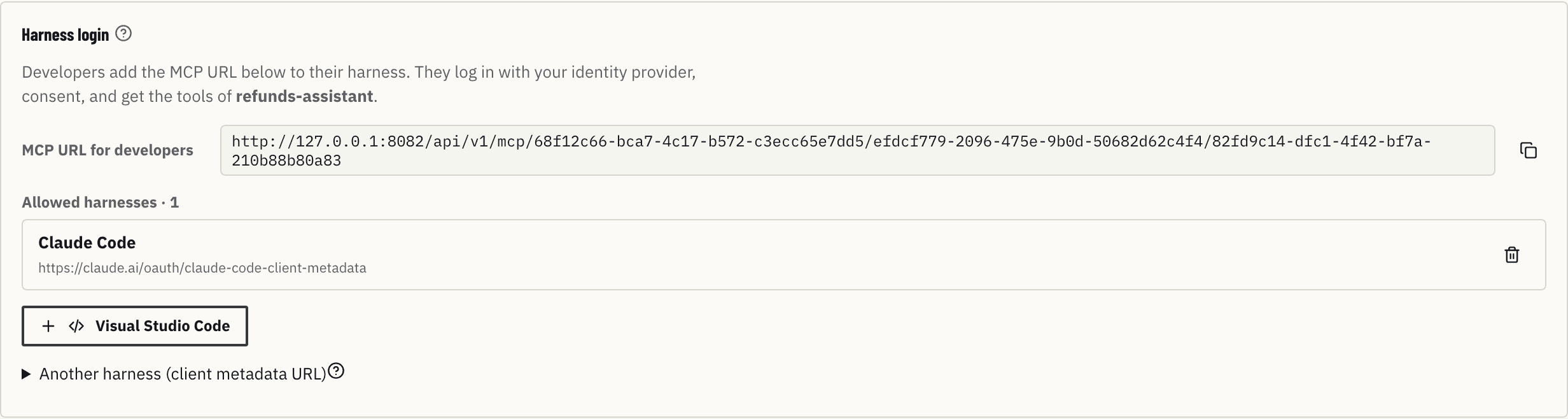
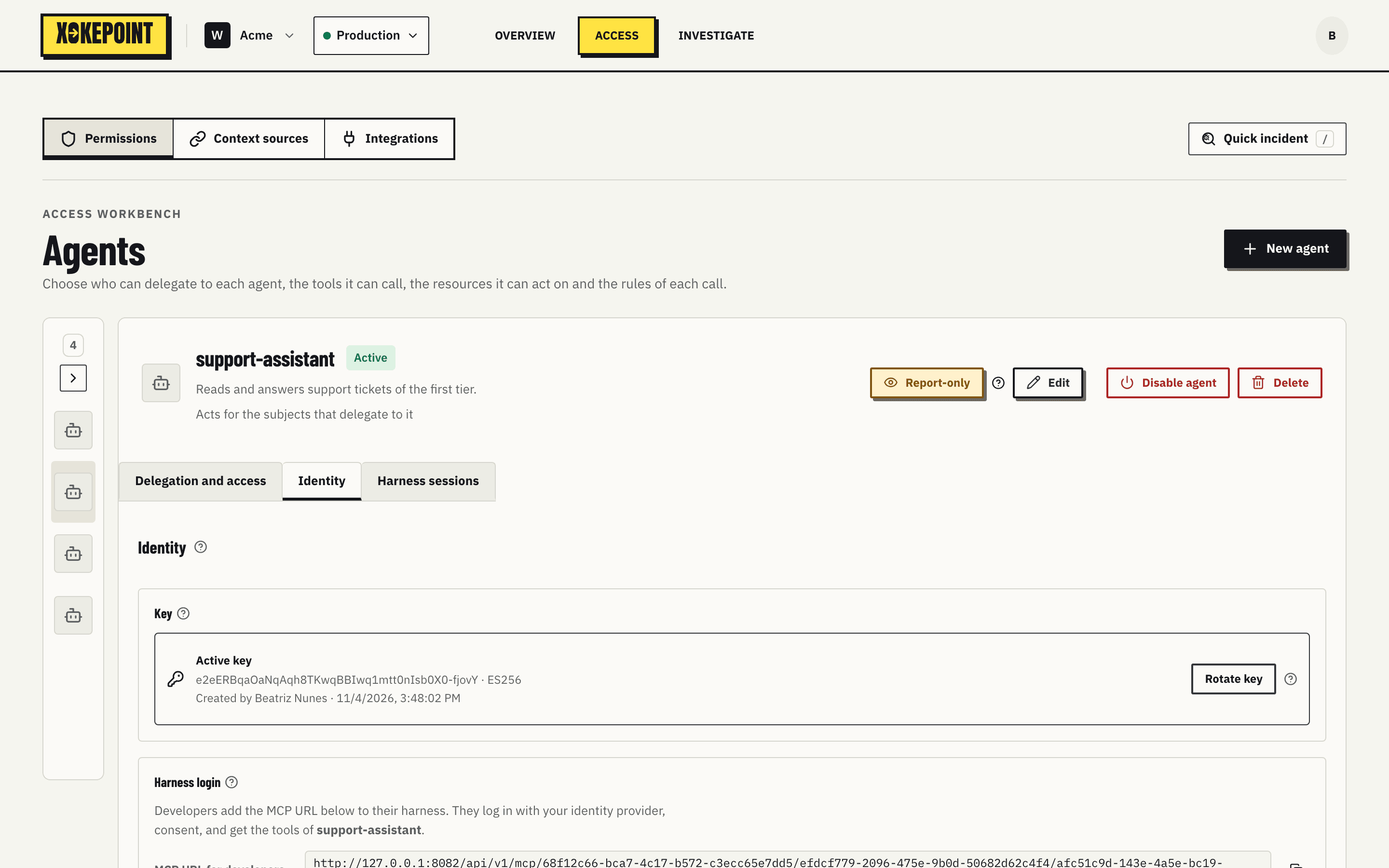
The Harness login card is the second card of the tab, under the key. A coding harness logs a person in through the browser, and only the harnesses listed here can log in to this agent.
MCP URL for developers has one line for each server of the agent, with a copy button. The ingress needs the server, so each server has its own URL: <origin>/api/v1/mcp/<workspace>/<environment>/<server_id>. Give these URLs to the developers (Connect a coding harness). Before the agent has published tools, the card says "Publish tools for this agent first. Then the MCP URL of each server appears here."
Allowed harnesses lists each harness with its name, read from its client metadata document, its URL and a remove button. Without an entry, the card says "No harness yet. Nobody can log in to this agent from a harness." Below the list, one button for each harness of the catalog that is not allowed yet. The catalog has Claude Code and Codex, the harnesses whose vendors publish a client metadata document.
The same harness can be allowed in several agents, for example "Claude Code — Developers" and "Claude Code — SRE", each with its own groups and tools. The entry then says which other agents allow it. At login, a person eligible for more than one of them chooses one.
Another harness (client metadata URL), collapsed, adds a harness that is not in the catalog. A harness identifies itself with a public HTTPS URL, its client metadata document: a small file of the vendor with the harness name and the addresses it returns to after login. Ask the vendor for this URL. Xokepoint reads the document at login, keeps it in cache for at most 24 hours, and accepts only loopback redirects. An unlisted URL is refused at login.
Who can log in is set per identity provider, in the agent graph (Who can delegate). Who is logged in is in the Harness sessions tab (Harness sessions).
Generate the key
The key is for the headless mode. On an agent without a key, the Key card says "No key yet. The agent can not get a token." and offers Generate key and download. What happens:
- The browser creates an ECDSA P-256 key pair.
- The key identifier is the thumbprint of the public key (RFC 7638), computed in the browser. Nobody types it.
- The Admin sends only the public key to Xokepoint.
- The browser downloads
<agent>.chokepoint.json:
| Field | Contents |
|---|---|
client_id | The agent ID as a client of the authorization server |
issuer, token_endpoint | Where the agent does the token exchange |
kid, alg | The key identifier and the algorithm (ES256) |
private_key | The private key, as a JWK |
A green banner says the file is the only copy of the private key and that Xokepoint cannot show it again. Store it like a password and give it to the developer through a secure channel (Integrate the agent).
With the key created, the Key block shows Active key: the identifier, the algorithm and "Created by {administrator} · {time}".
Connection details and How the agent connects
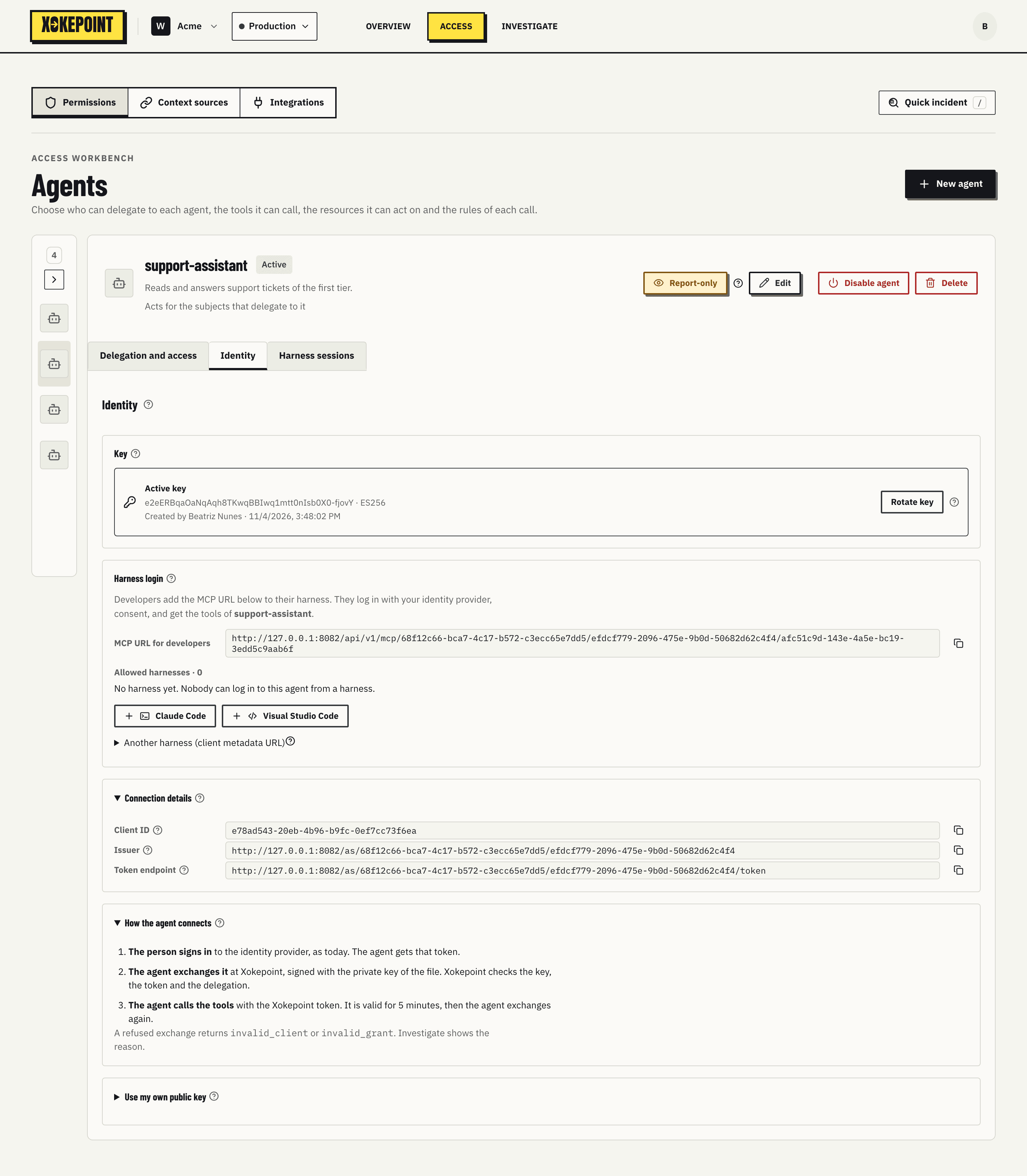
Connection details has Client ID, Issuer and Token endpoint, each with a copy button. They are the same values as in the file, for whoever configures the agent by hand.
How the agent connects summarizes the three steps: the person signs in to the identity provider and the agent gets their token; the agent exchanges that token at Xokepoint, signing with the private key; the agent calls the tools with the Xokepoint token, valid for 5 minutes. A refused exchange returns invalid_client or invalid_grant, and the reason appears in Investigate.
Use my own public key
For teams that keep the private key in a vault and do not want the Admin to generate a file:
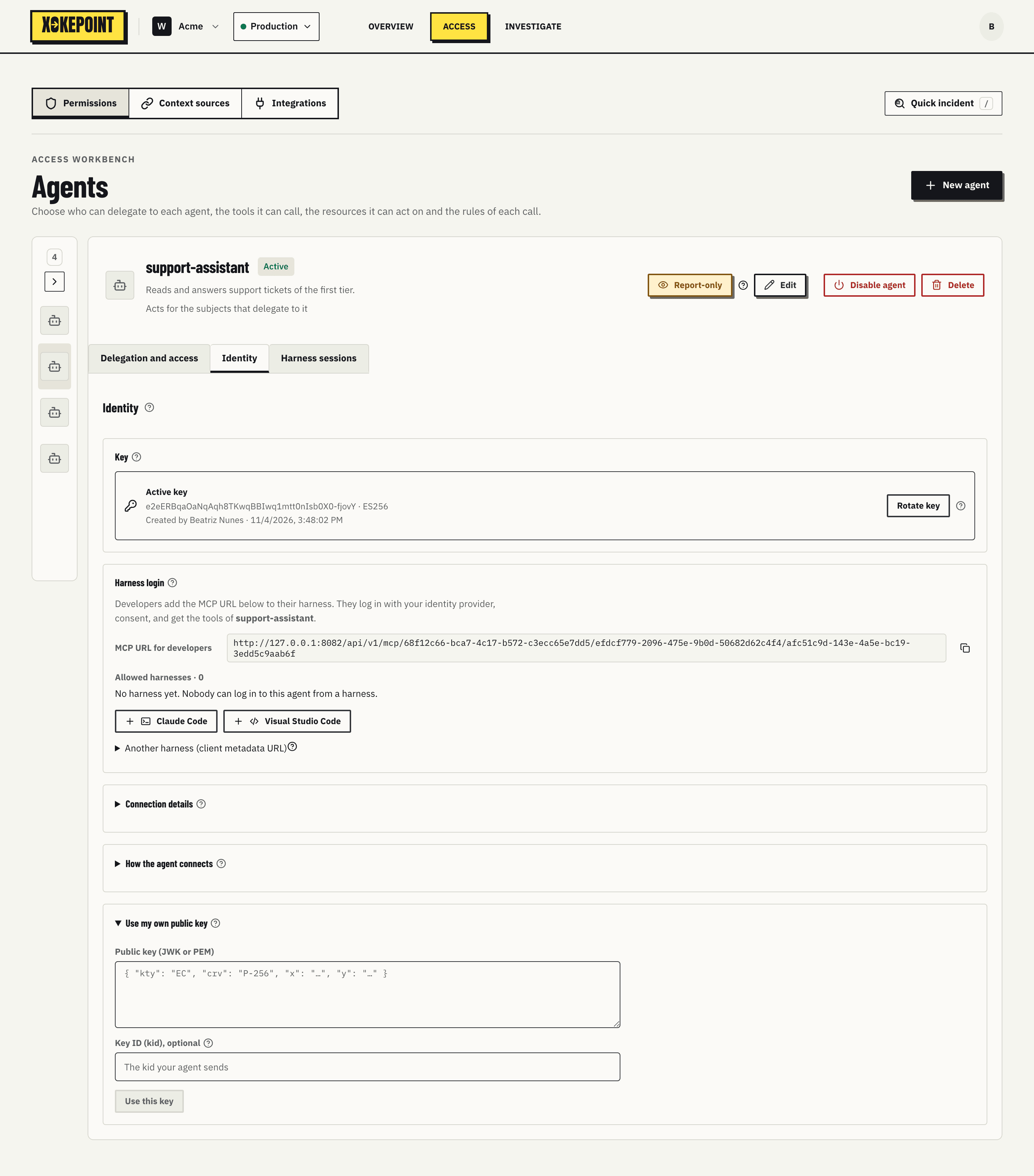
The Public key (JWK or PEM) field takes only the public key. Key ID (kid) is optional; without it, the backend uses the kid of the JWK and, if the JWK has none, its thumbprint. The agent must send that same kid in the header of its client assertion. The field refuses a private key ("Paste only the public key") and unknown formats. Use this key registers it.
Rotate the key
Rotate key asks for confirmation before acting:
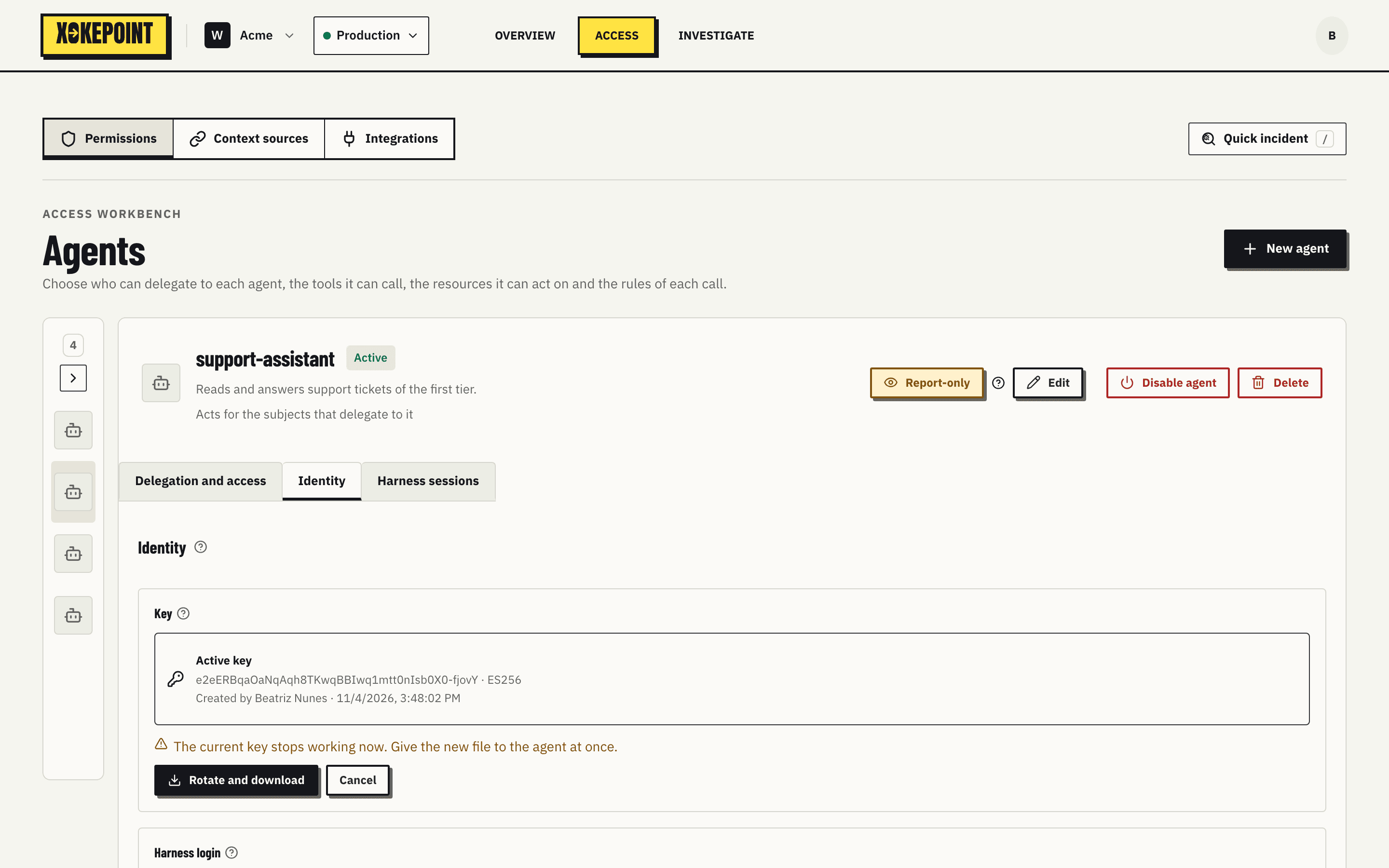
The warning says: "The current key stops working now. Give the new file to the agent at once." Rotate and download generates the new pair and downloads the file. The previous key stops working at once; tokens already issued stay valid until they expire, within 5 minutes.
Rotate the key when the file may have leaked, when someone with access to it left the team or when Investigate shows exchanges refused with invalid_client coming from where they should not.
Disabled agent
With the agent disabled, the tab shows "This agent is disabled. It gets no token, and its next call is rejected." This applies to both modes: no exchange, no harness login and no refresh. The key and the allowed harnesses are kept.