The delegation and access graph
The anatomy of the agent graph, the side panel, the toolbar, filters, full screen, list view and help.
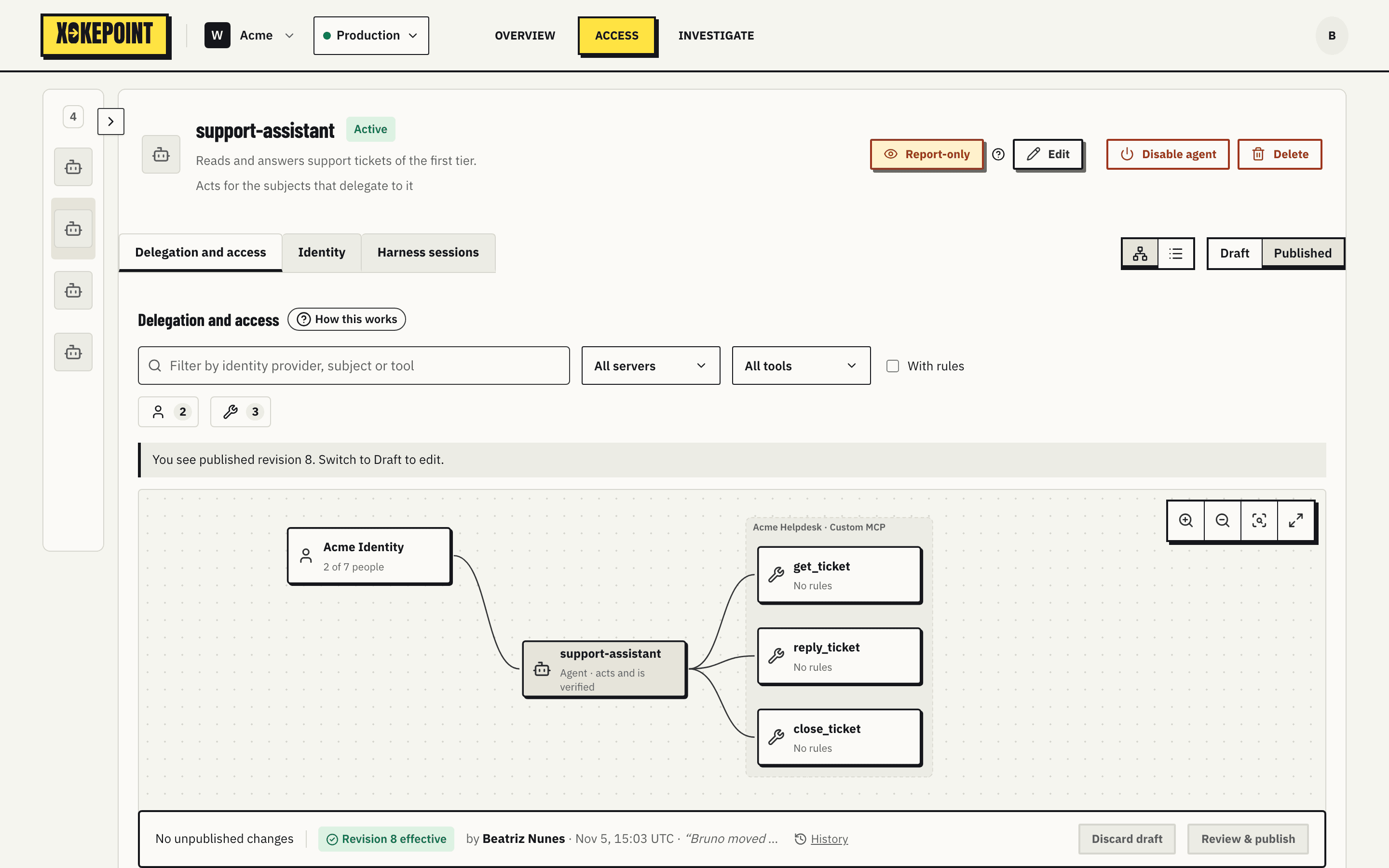
Each agent's Delegation and access tab shows all of its relations and rules in one place. The graph is both the map and the editor: clicking a box or a link opens its editor in a side panel on the right edge of the window, and the graph keeps its full width.
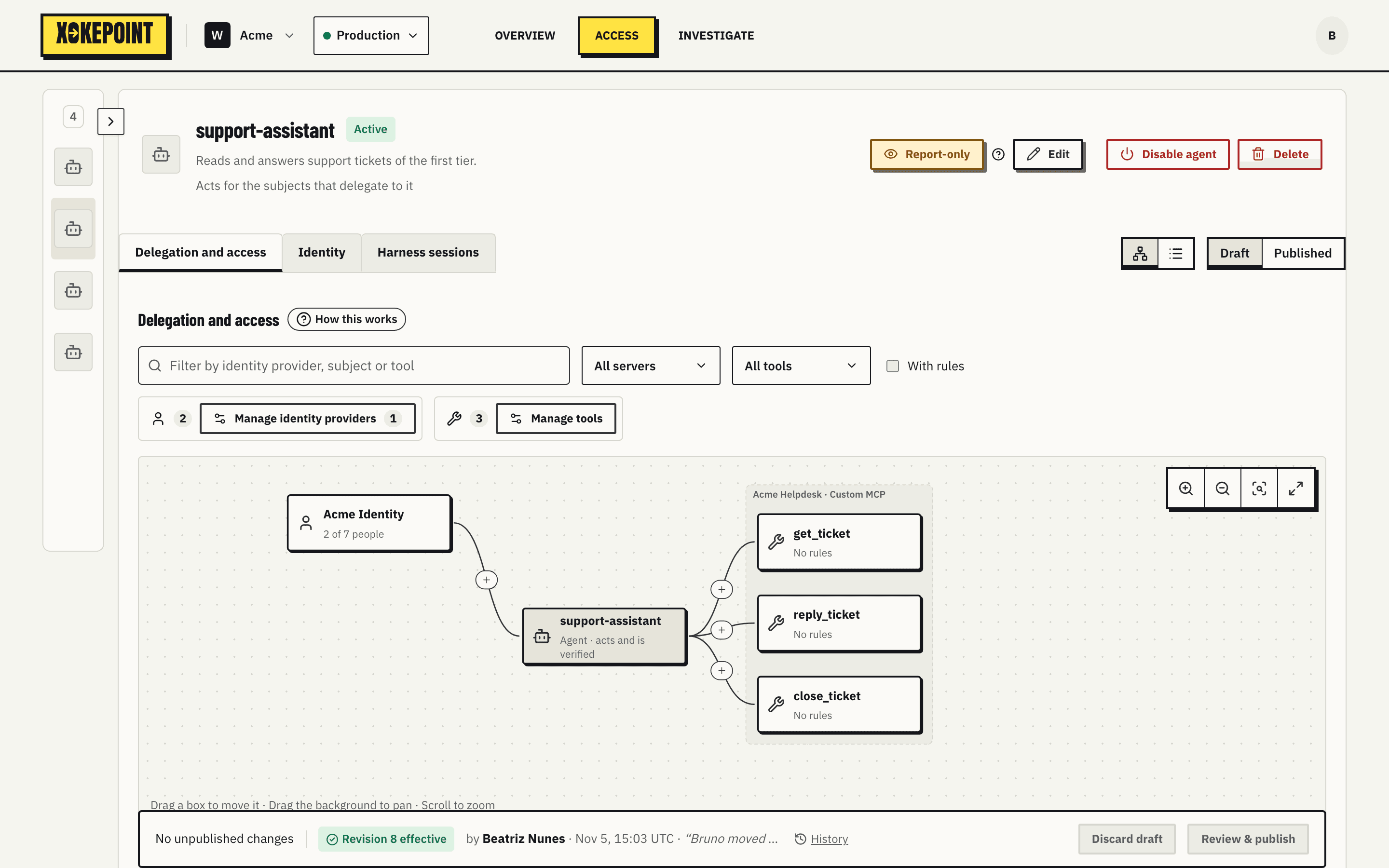
The agent header
Above the tabs sit the agent name, its state (Active or Disabled) and two groups of actions. The first holds Report-only (Report-only), with a help icon that explains the mode, and Edit. The second, apart, holds Disable agent, the kill switch (Publish and disable), and Delete; both ask for confirmation.
Below them, one row holds the three views of the agent on the left and, on Delegation and access, the view toggles on the right:
- Delegation and access: the graph described on this page.
- Identity: the agent key and the Harness login card (Agent identity).
- Harness sessions: the people and machines logged in from a coding harness (Harness sessions).
The columns
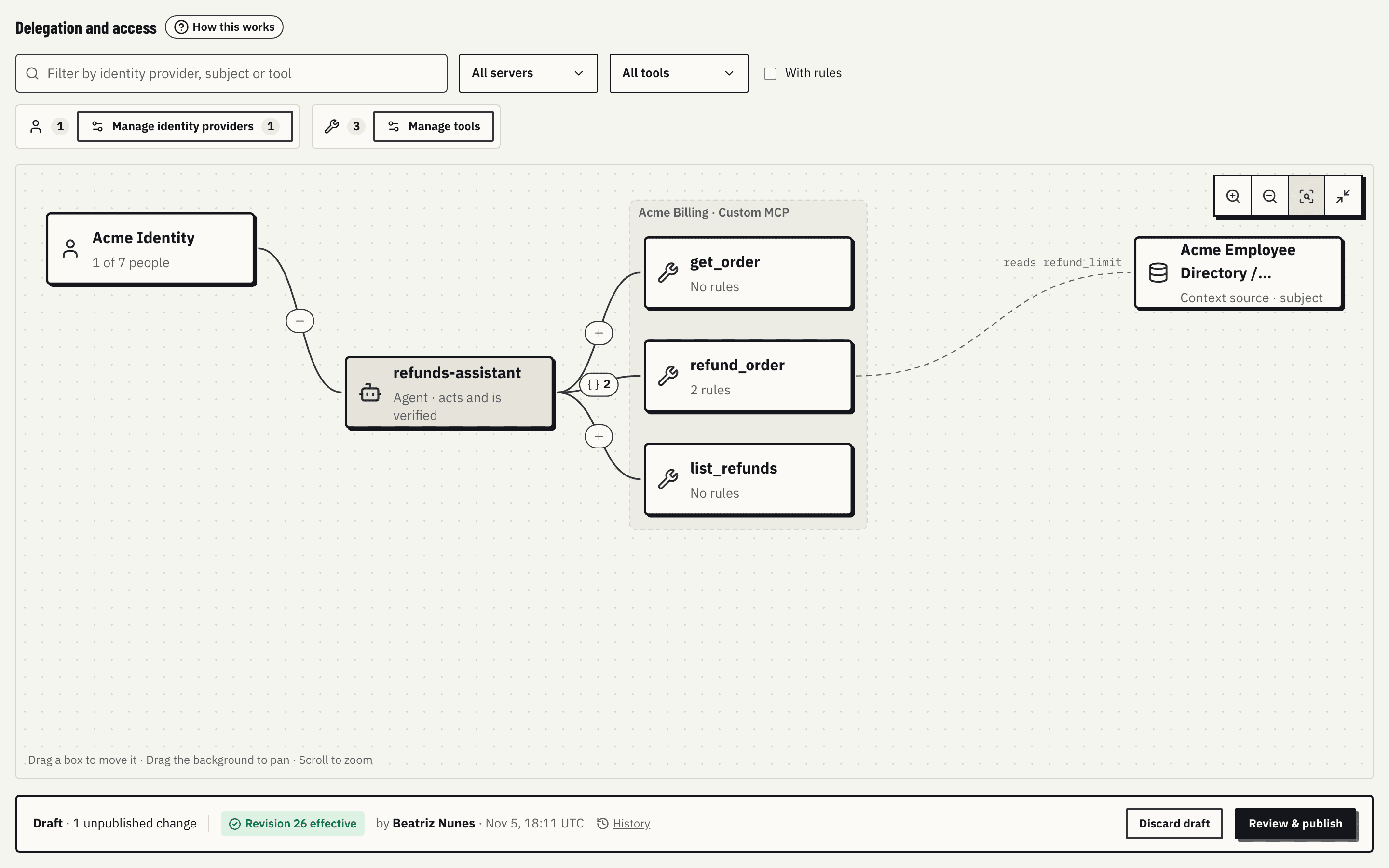
The graph reads left to right, in the order in which authorization checks a call:
- Who can delegate. One node per identity provider, never one node per person. The subtitle says how many subjects delegate: "2 of 7 people".
- Agent. The highlighted node in the center, with the agent name and "acts and is verified".
- Servers and tools. One dashed box per MCP server, with the name and type (Enterprise MCP or Custom MCP). Inside, one node per tool the agent can call, with the number of its rules: "No rules", "1 rule", "3 rules".
- Context sources. When a rule of a tool reads trusted attributes, a dashed link goes from the tool to the context source that supplies them, labelled with what the rules read ("reads refund_limit, team"). A tool whose rules read only call arguments has no such link.
The links
| Link | What it is | Relation |
|---|---|---|
| Provider → agent | Delegation | agent#delegator@subject |
| Agent → tool | Tool grant | tool#can_call@agent |
| Tool → context source, dashed | The trusted attributes that the rules of the tool read. Not a relation | — |
Each delegation and tool link has a mark in the middle. A clock means the relation expires. {} N means the link has N rules. + appears when there is neither and opens the tool panel on a new rule.
The side panel
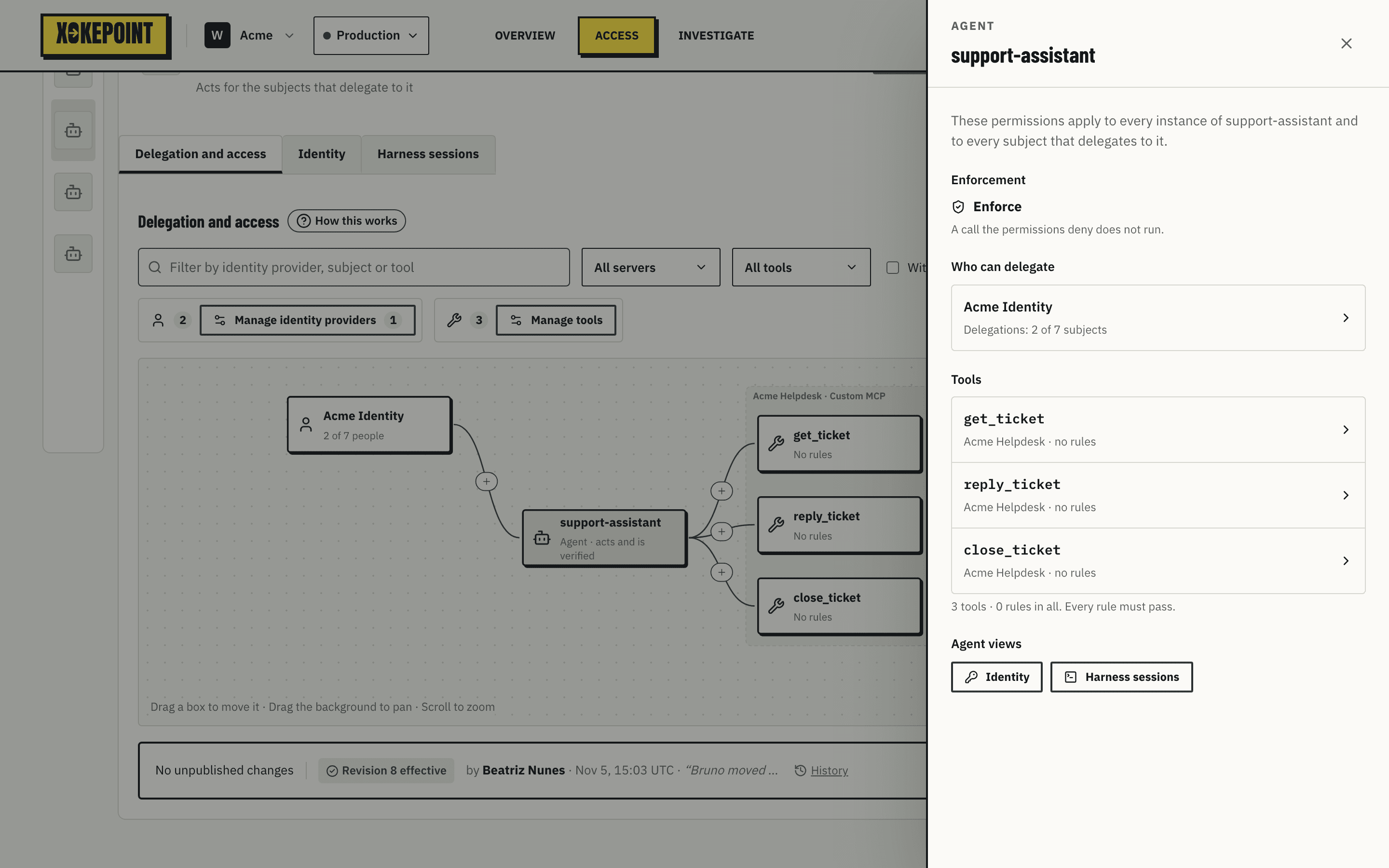
Every editor opens in the same side panel: an identity provider, a tool, the agent, the list of identity providers or the tools to add. A panel opened from another panel, such as an identity provider opened from the list of identity providers, shows Back to at the top; a panel opened from the graph or the list has no Back. Escape, the close button or a click on the page closes it.
Clicking the agent node opens a summary: the permissions apply to every instance of the agent and to every subject that delegates to it; the enforcement mode; one row per identity provider with its delegations; one row per tool with its server and its rules; and buttons to the Identity and Harness sessions views. Each row opens its own panel.
Interaction
- Dragging a box moves it; links follow. Reset layout restores the original positions. Positions are only a view preference and are not part of the configuration.
- Dragging the background pans; the mouse wheel zooms at the cursor; the corner buttons zoom in, zoom out and fit the graph.
- Full screen fills the window, keeping the side panel and the publication bar. Escape leaves it.
- A click without dragging selects and opens the panel. The keyboard also selects.
Toolbar and filters
- How this works opens the help with the full model (below).
- Graph / List, two icons on the row of the views, switch between the graph and the tables.
- Draft / Published switches between the draft being edited and the published revision, read only.
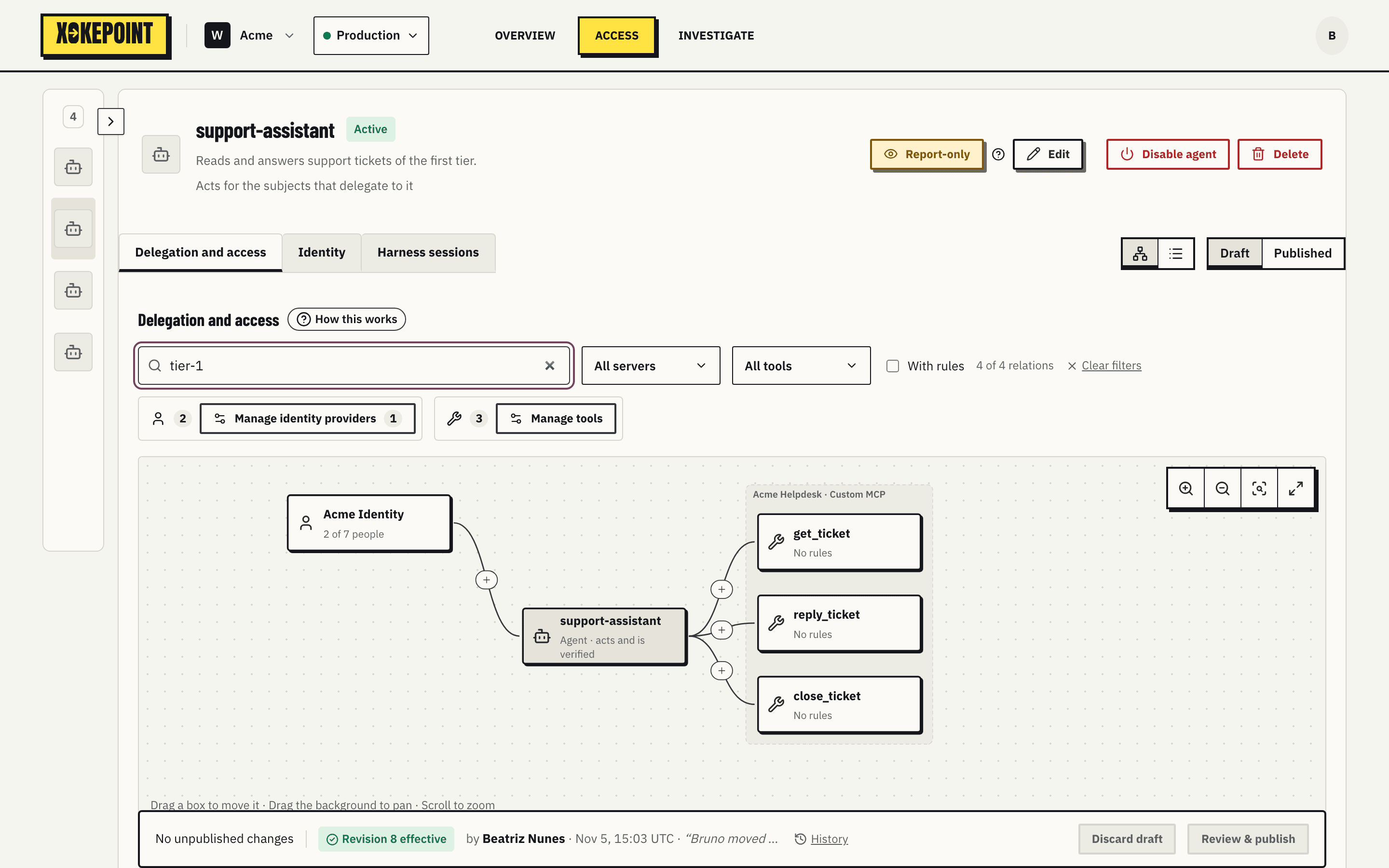
- Search looks up identity provider, subject and tool. Each column is filtered only when the text matches something in it, so a search for a tool still shows who can delegate.
- All servers and All tools narrow the graph to one server or one tool. The tool list follows the selected server.
- With rules shows only tools with rules.
- With an active filter, "N of M relations" and Clear filters appear.
Filters only change what you see. Every edit applies to the whole draft. There is no filter by identity provider because tools and rules are the same for everyone who delegates to the agent.
The section bar
Below the filters, the bar shows a person icon with the number of subjects who delegate, Manage identity providers with the number of identity providers, the tool icon with the number of tools, and Manage tools. It is the same in the graph and the list. With one identity provider, Manage identity providers opens its panel; with none or several, it opens the list of identity providers.
Large columns
A server with more than 8 tools becomes a single "N tools" node. Clicking it opens the group panel, with a summary, search and pages of 50. The summary shows the total, how many expire and how many have rules. Each row opens the panel of that tool, with Back to to return to the group.
List view
List shows the same relations in two tables, for keyboard use and long lists:
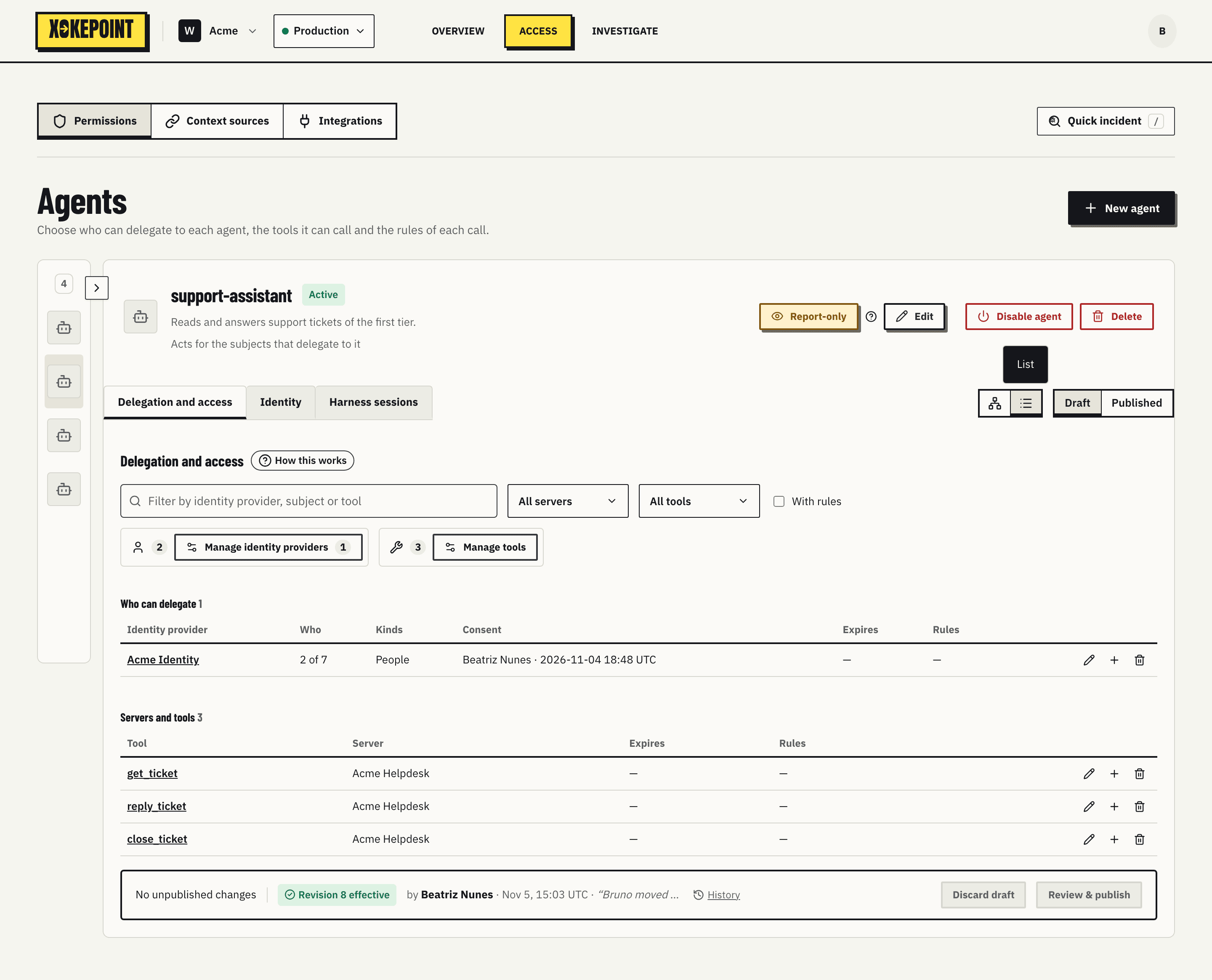
| Table | Columns |
|---|---|
| Who can delegate | Identity provider, how many of how many, kinds (People, Services), consent, expiration, rules |
| Servers and tools | Tool, server, expiration, rules |
Each row has Open, Add rule and Remove.
Published revision
Published shows the revision that applies now, without editing: the manage buttons disappear and panels are disabled. A banner says which revision you are viewing.
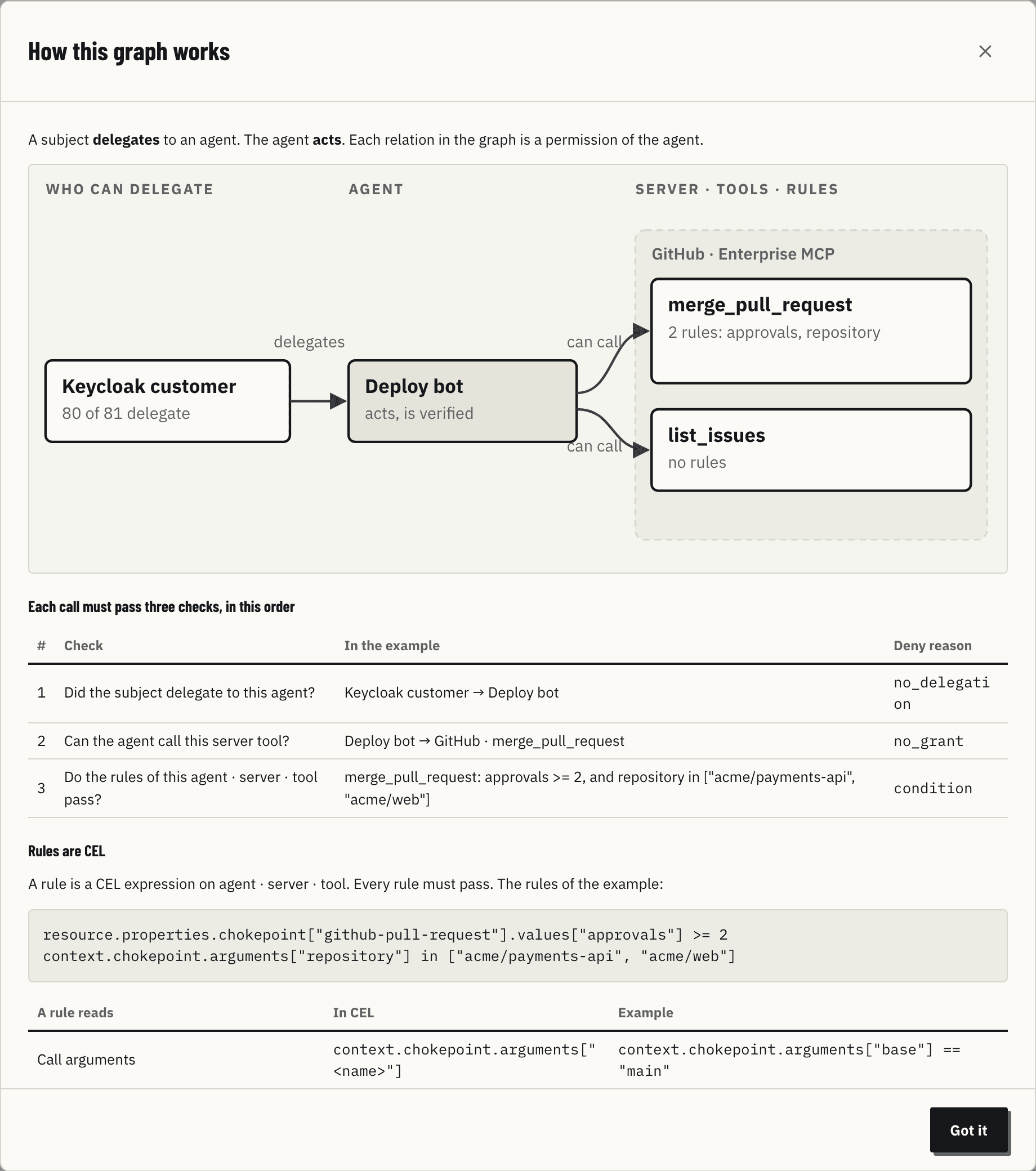
Help: How this works
The help dialog summarizes the model with a fixed example: the three checks in order and the deny reason of each, a section on rules in CEL with what a rule reads, example calls with their result and the points to remember.
The next pages detail each column and the panel it opens.