Microsoft Entra ID
The Microsoft Entra ID connection form, the app registration of the tenant, the Graph permissions, the check messages and harness login.
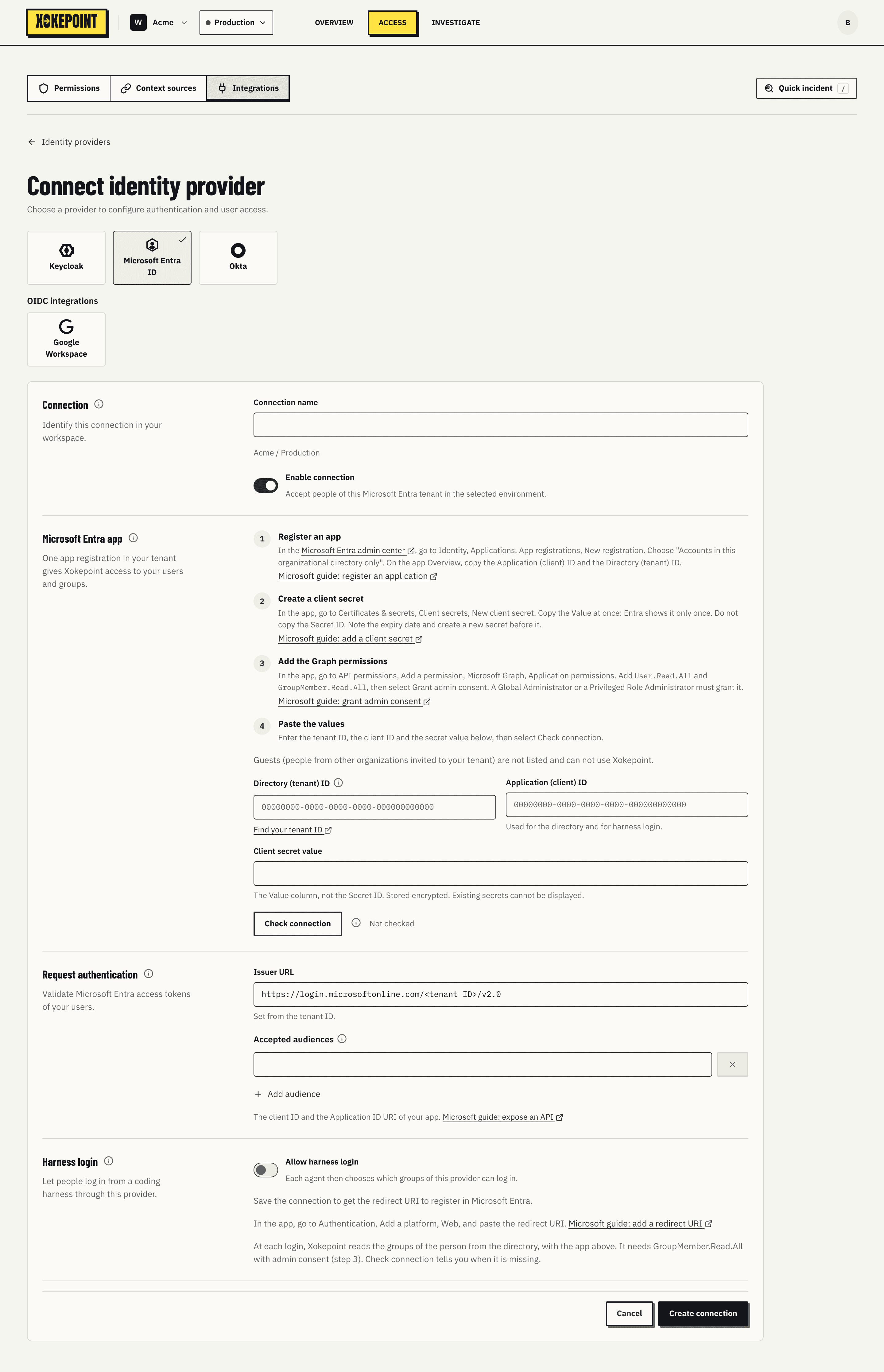
Every organization on Microsoft 365 already has an Entra tenant. Xokepoint uses one app registration in that tenant for three jobs: it reads users and groups with Microsoft Graph, it signs people in from a coding harness, and it is the audience of the Entra tokens that a service of yours exchanges for agent tokens. The administrator types its three values once.
Connection
- Connection name and Enable connection, as in other connections.
Microsoft Entra app
The form guides you through four steps, each with a link to the Microsoft guide:
- Register an app in the Microsoft Entra admin center: Identity, Applications, App registrations, New registration, with "Accounts in this organizational directory only". On the app Overview, copy the Application (client) ID and the Directory (tenant) ID. Microsoft guide: register an application
- Create a client secret: Certificates & secrets, Client secrets, New client secret. Copy the Value at once, because Entra shows it only once; the Secret ID does not work. A secret has an expiry date: create the next one before it. Microsoft guide: add a client secret
- Add the Graph permissions: API permissions, Add a permission, Microsoft Graph, Application permissions, then
User.Read.AllandGroupMember.Read.All, and Grant admin consent. Only a Global Administrator or a Privileged Role Administrator can grant it. Both permissions are read only. Microsoft guide: grant admin consent - Paste the values in the three fields below the steps.
| Field | What to enter |
|---|---|
| Directory (tenant) ID | The GUID of your organization. common, organizations, consumers and the tenant of personal Microsoft accounts are refused. Find your tenant ID |
| Application (client) ID | The GUID of the app. It serves the directory and harness login |
| Client secret value | Stored encrypted and never displayed again. Change replaces it. A new tenant ID or client ID asks for the secret of that app |
A person is identified by the object ID of the tenant, the same value in the token, in the harness login and in Microsoft Graph. A rename or a new e-mail address does not change it.
Guests, people of other organizations invited to your tenant, are not listed and can not use Xokepoint.
Check connection
Check connection reads the metadata and signing keys of the tenant, gets a Microsoft Graph token with the secret, reads one user, reads the groups and reads the groups of one person. Each message points to the step that fixes it:
| Message | Fix |
|---|---|
| Microsoft Entra does not know this tenant ID | Copy the Directory (tenant) ID from the app Overview |
| This application is not in the tenant | Check the client ID and the tenant ID |
| Microsoft Entra rejected the secret | Paste the secret Value, not the Secret ID |
| The client secret expired | Create a new secret (step 2) |
| The app can not read users | Add User.Read.All and grant admin consent (step 3) |
| The app can not read groups | Add GroupMember.Read.All and grant admin consent (step 3). Harness login needs it |
| Microsoft Entra does not let the app read the groups of a person | Add Directory.Read.All and grant admin consent |
Request authentication
- Issuer URL: follows the tenant ID,
https://login.microsoftonline.com/<tenant ID>/v2.0. - Accepted audiences: the client ID and
api://<client ID>by default. Add audience adds another one.
The audiences matter only when a service of yours exchanges an Entra token of a user for an agent token. For that, open Expose an API in the app, set the Application ID URI (the default is api://<client ID>) and add a scope; the service then asks Entra for a token of that scope. Microsoft guide: expose an API
Xokepoint accepts v1.0 and v2.0 access tokens, so the app manifest stays as Entra creates it. The token must come from a person of the tenant: an ID token, a token with no user (app-only) and a token of another tenant are refused.
Harness login
People log in from a coding harness with their Microsoft work account (Harness login). The login client is the same app, so the section has only Allow harness login and the Redirect URI. Register the redirect URI in the app under Authentication, Add a platform, Web. Microsoft guide: add a redirect URI
At each login, Xokepoint reads the groups of the person from Microsoft Graph with GroupMember.Read.All. Security groups and Microsoft 365 groups, Teams teams included, can be chosen in an agent. Nested groups are not followed: the person must be a direct member of a chosen group.
Changing the tenant
If you change the tenant ID of a saved connection, the people associated before belong to the previous tenant and lose access. Xokepoint does not block the change.